
Shipping Methods Integration
Display SFCC shipping methods
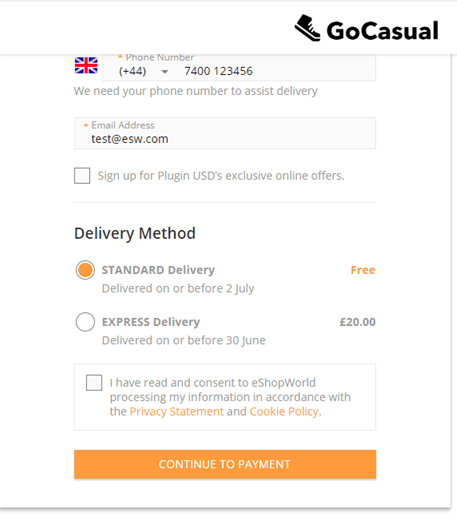
The shipping methods displayed during ESW Checkout depend on the configuration of the ESW Override Shipping preference in ESW Checkout Configuration.
Behavior
- When ESW Override Shipping is Enabled (Per Country)
- The ESW Checkout API sends SFCC Standard Shipping Methods as overrides to ESW.
- The shopper sees SFCC shipping methods at checkout.
- When ESW Override Shipping is Disabled (Per Country)
- ESW retrieves the default shipping methods from the Checkout tenant configuration or database.
- The shopper sees ESW-managed shipping methods at checkout.
Displaying the SFCC Shipping Methods
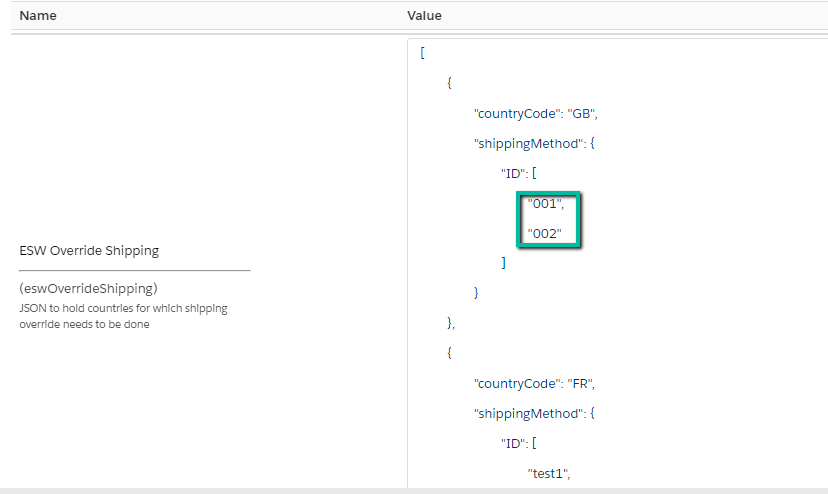
The standard SFCC shipping methods are created with a specific currency. In the custom site preference, the ID of the shipping methods is mapped with a specific country.
Follow the following steps to display the standard SFCC shipping methods at the ESW checkout.
Create Standard Shipping Methods in SFCC
- Navigate to SFCC Business Manager → Merchant Tools → Ordering → Shipping Methods
- Create shipping methods with:
- Shipping names and types for currencies available to shoppers on the storefront.
- Ensure that the shipping method names and types (e.g.,
POSTfor standard shipping,EXP2for express shipping) are supported by ESW.
Configuring POST, EXP2, or any one of these two options for different currencies depends on the retailer’s business requirement.
The shipping method names must be either POST or EXP2. This naming rule is required by ESW. However, the ID can be any value.
Configure Shipping Method IDs by Country
- Go to Merchant Tools → Site Preferences → Custom Preferences → ESW Checkout Configuration
- Configure the shipping method IDs for each country.
- Use the JSON format in the
ESW Override Shippingcustom site preference
Step 3: Enable Override Display on Cart Page (Optional)
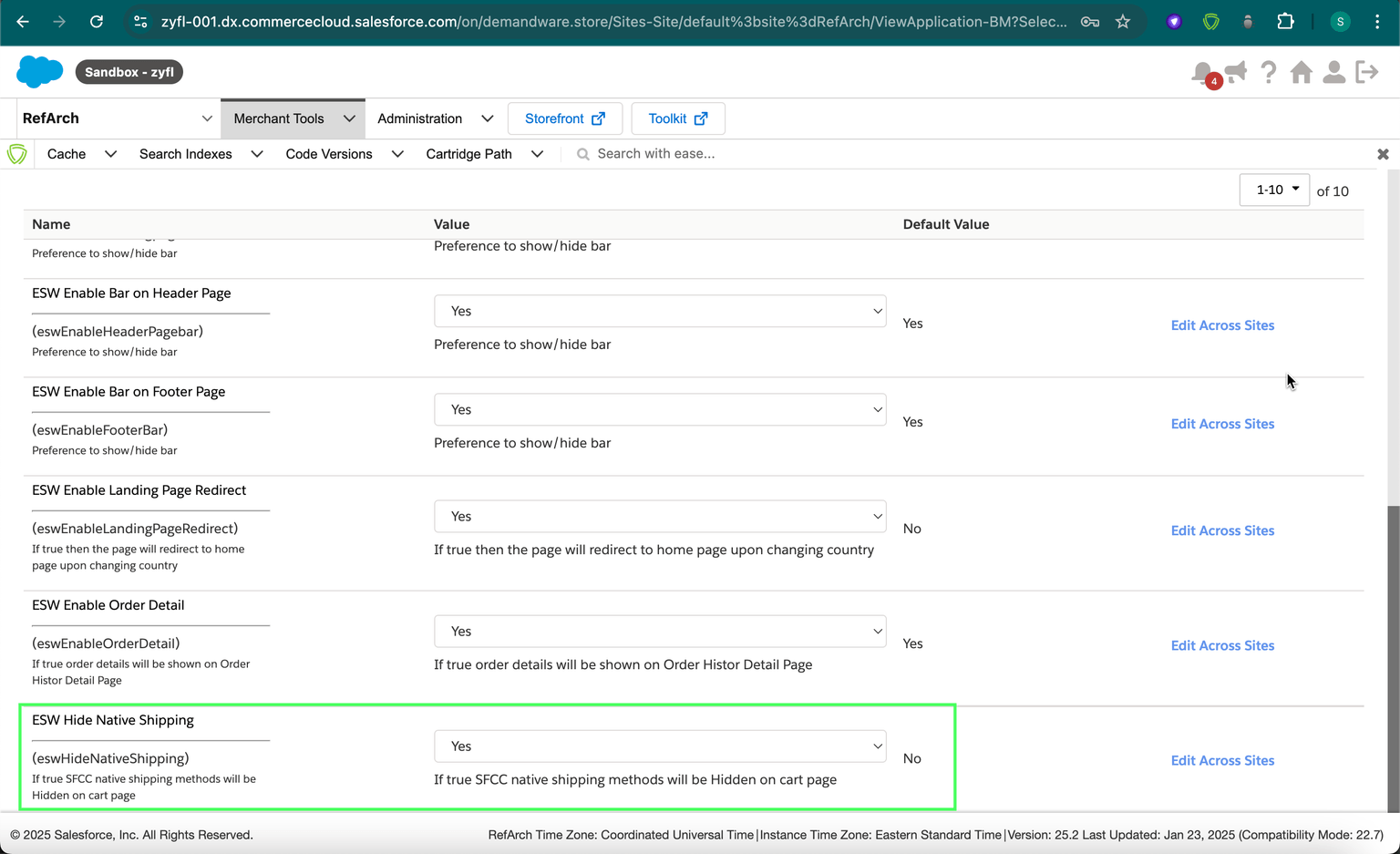
- If you want to display ESW shipping override methods on the cart page, enable the preference:
- ESW Hide Native Shipping
(Found inESW Retailer Display Configuration)
- ESW Hide Native Shipping
Step 4: Verify Shipping Methods at Checkout
- Once configured:
- The standard SFCC shipping methods mapped to each country will be displayed during the ESW Checkout process.
- Example: The screenshot below shows shipping methods configured for Britain (GB).
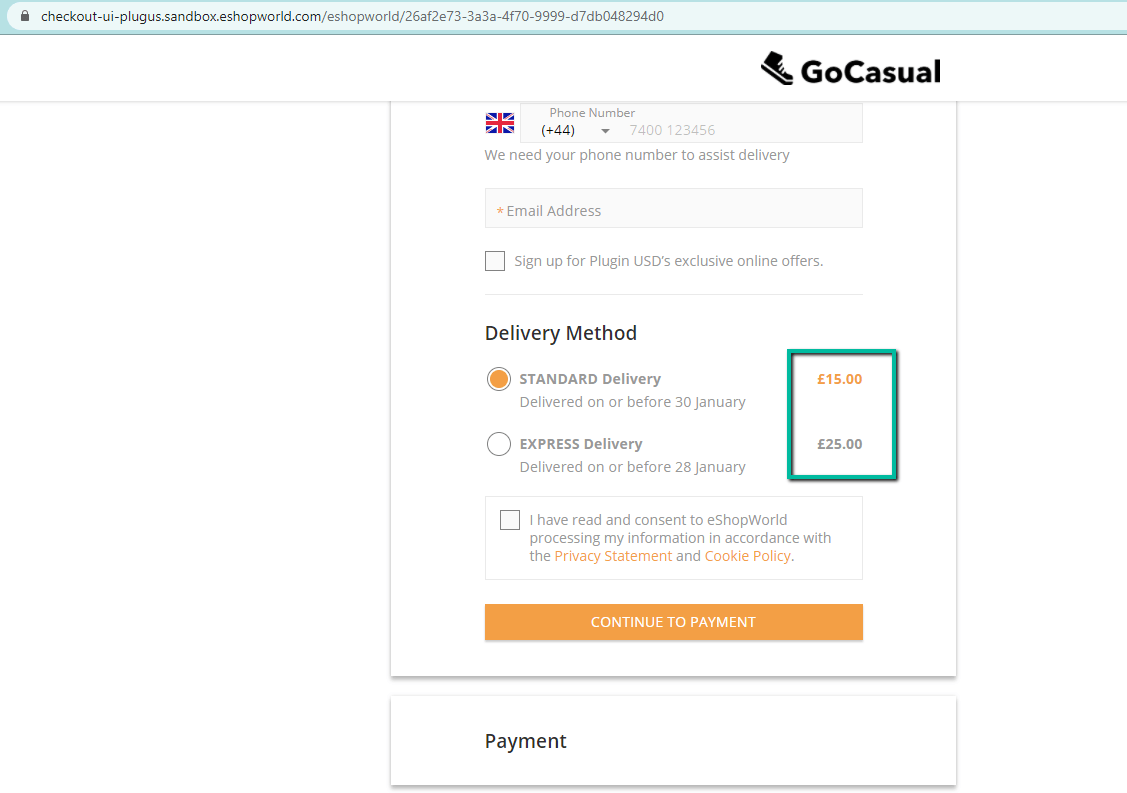
Ensure shipping method IDs and types match ESW’s supported configurations to display correctly at checkout.
Additional Rules
- Fixed Pricing Countries:
- Shipping methods must be created with the country’s currency.
- Example: For the UK (fixed price country), shipping methods must use GBP.
- Dynamic Pricing Countries:
- Shipping methods must be created with the base currency.
- Example: For France (dynamic price, base currency USD), shipping methods must use USD.
- Override Pricebook Configuration:
- If ESW Override Pricebook is set under ESW Pricing Configuration for a country,
- Shipping methods must match the currency of the override pricebook.
- Shipping Method Count Handling:
- If only one SFCC shipping method is configured for a country but the ESW Checkout tenant is set to display two methods → The second method from ESW shipping methods is displayed alongside the SFCC override.
- If two SFCC shipping methods are configured but ESW Checkout is set to display only one method → The second SFCC method is ignored.
Using ESW Shipping Methods
Retailers can choose to use ESW-managed shipping methods, eliminating the need to configure and maintain multiple shipping methods within SFCC Business Manager.
How It Works
- To display ESW shipping methods for a specific country:
- Do not configure any override shipping methods in the ESW Override Shipping preference.
- When no override is set:
- The ESW Checkout API sends the parameter:
- This triggers the use of shipping methods from the ESW tenant configuration, which are then displayed on the ESW Checkout.
Displaying Shipping Methods on the Cart Page
The shipping methods on the Cart page are displayed based on the ESW Override Shipping preference.
- If the ESW Override Shipping preference is set, the first shipping method configured in override shipping is applied to the cart.
- If the ESW Override Shipping preference is not set and no shipping method is assigned to the order, the default shipping method is used to create and display the order in the SFCC Business Manager. The shipping cost associated with the default shipping method is displayed as 'Estimated Shipping Cost' on the Cart page (SFRA).
- The ESW Hide Native Shipping preference can be found in the ESW Retailer Display Configuration under custom preferences.
Example
Scenario:
- The ESW Override Shipping preference is not configured
002is the default shipping method ID- The shipping cost of this method is
9.99 GBPin the SFCC Business Manager
On the Cart page, the shipping is displayed as Estimated Shipping Cost with a value of 9.99 GBP.
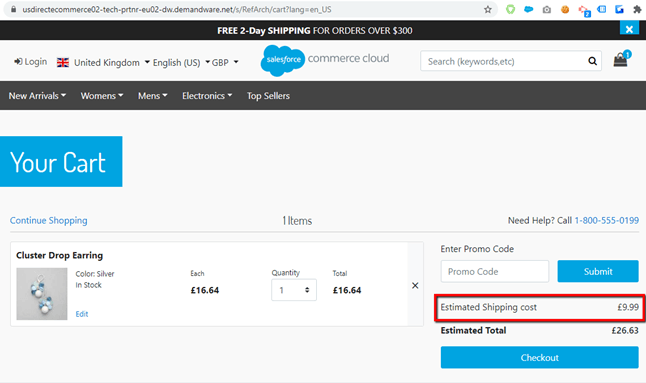
Basket display when ESW Hide Native Shipping preference is turned off, and shipping override is configured for the country
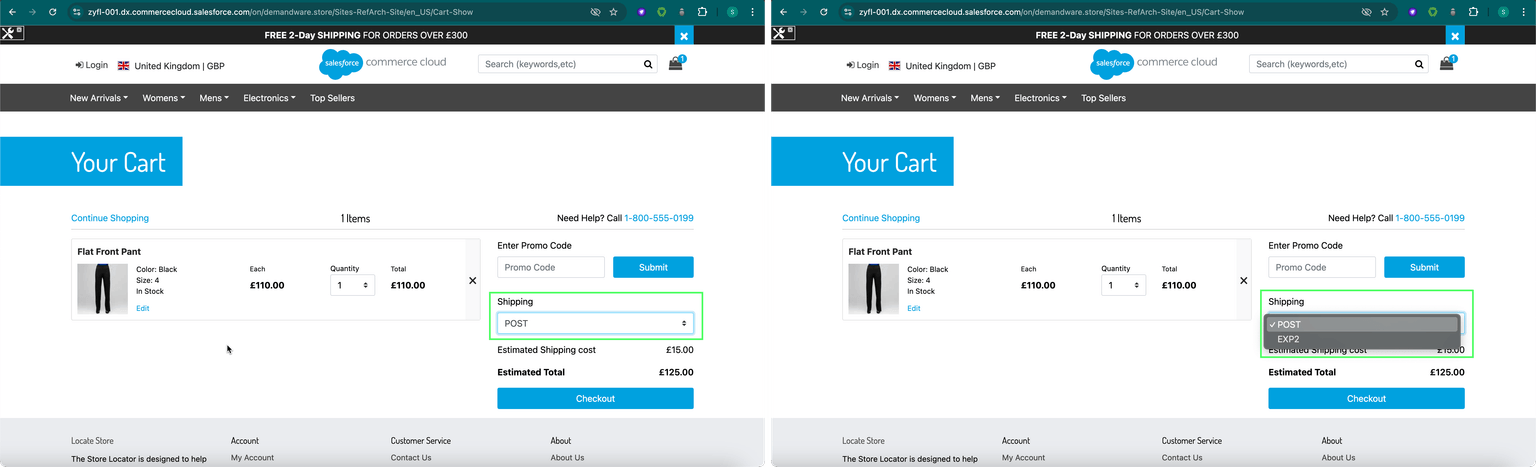
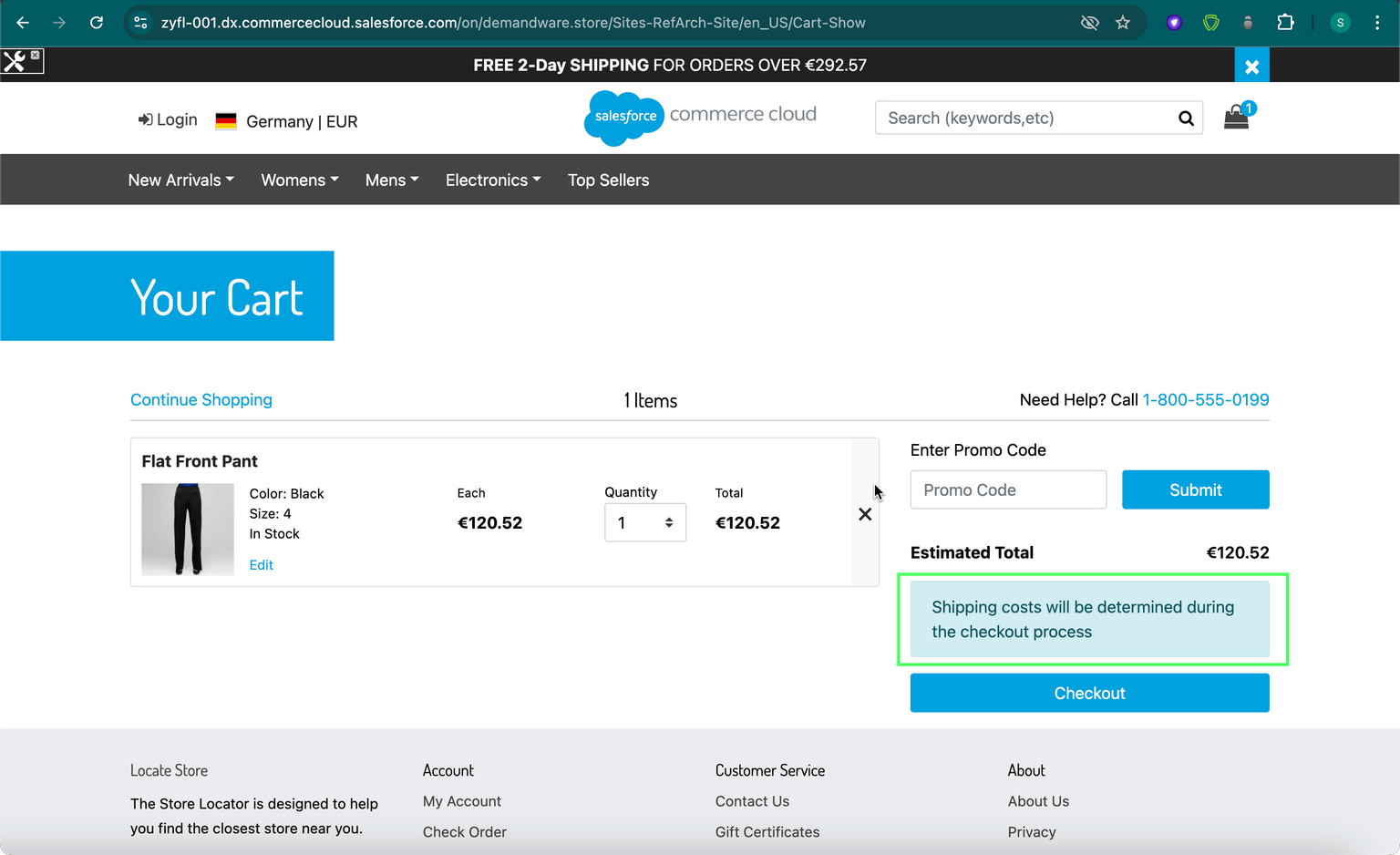
Basket display when ESW Hide Native Shipping preference is turned off, and shipping override is not configured for the country
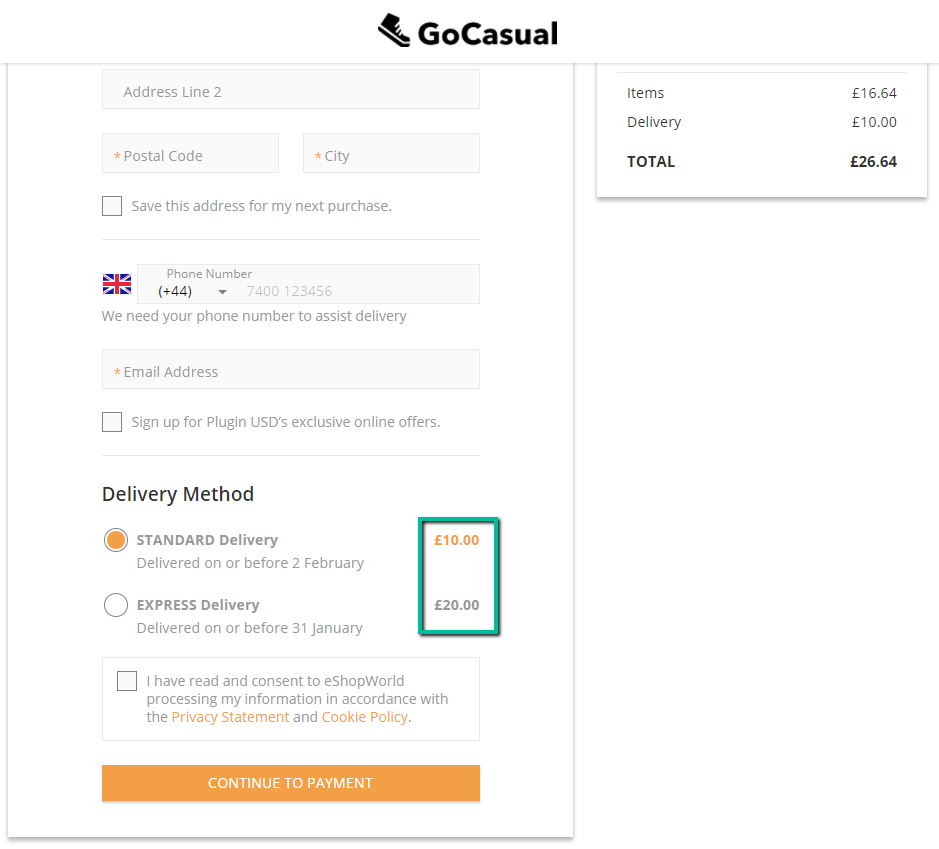
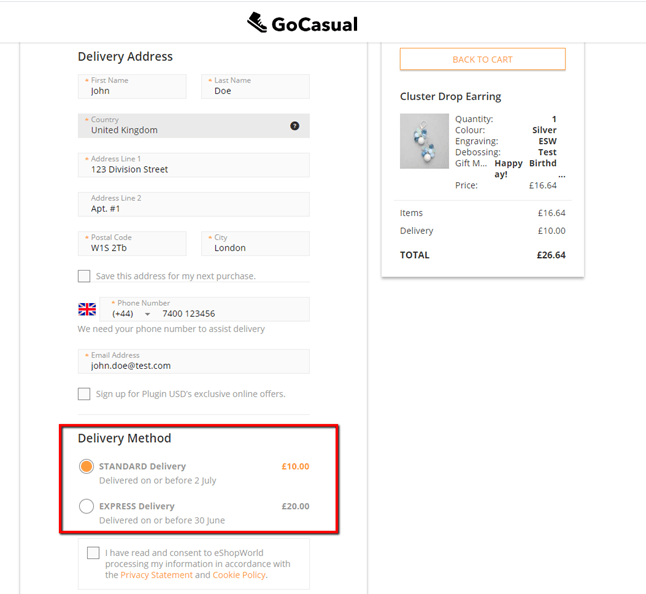
The shipping cost of 10.00 GBP for Standard Delivery and 20.00 GBP for Express Delivery is applied from the tenant configuration and displayed on the ESW Checkout
Based on the standard SFCC Shipping Methods fallback behavior:
- If no Default Shipping Method is configured in SFCC Business Manager,
- The system automatically applies the first applicable shipping method (based on defined conditions) to the order.
- This method is then displayed in SFCC Business Manager as the selected shipping option.
- On the Cart page, the shipping cost associated with this first applicable shipping method is displayed as the Estimated Shipping Cost.
Updating the Order in SFCC after ESW Order Confirmation
Scenario 1 – Override Shipping Methods Enabled
- If override shipping methods are enabled and the shopper selects EXP2 as the shipping method during checkout:
- During the Order Confirmation request to SFCC,
- The ESW plugin updates the shipping method ID from the posted value (e.g., 001) to the selected method EXP2 (e.g., 002).
- The following order custom attributes are also populated with accurate delivery costs in both currencies:
- ESW Shopper Currency Delivery Price Info
- ESW Retailer Currency Delivery Price Info
Scenario 2 – Override Shipping Methods Disabled
- If override shipping methods are not enabled:
- Shipping methods are not updated during the confirmation.
- The correct delivery cost (in retailer and shopper currencies) can still be retrieved using the same order custom attributes:
- ESW Shopper Currency Delivery Price Info
- ESW Retailer Currency Delivery Price Info
Applying Free Shipping Promotion to ESW Shipping Methods
SFCC supports creating shipping promotions, such as offering free shipping for specific customer groups, products, or categories.
Steps to Create and Apply the Promotion
Create a Shipping Promotion
- Navigate to Merchant Tools → Online Marketing → Promotions
- Create a new promotion or edit an existing one.
- Define promotion rules such as:
- Free shipping for orders above a certain threshold.
- Free shipping for specific customer groups.
Apply Promotion to ESW Shipping Methods
- During promotion setup:
- Specify the Shipping Method IDs eligible for the promotion.
- These IDs must match the ESW shipping methods configured in SFCC (e.g.,
POST,EXP2).
Promotion Behavior
Once created, the shipping promotions are applied to the SFCC shipping methods by providing the Shipping Method IDs
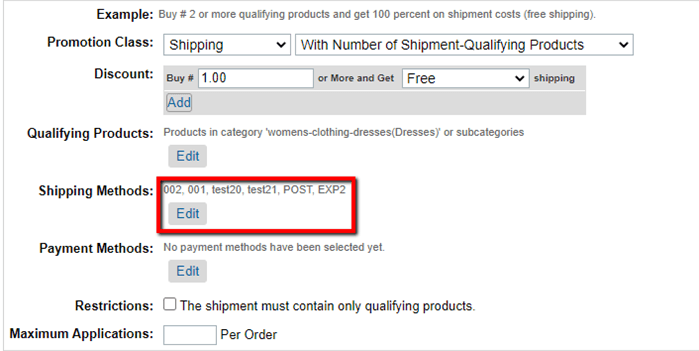
Payment Methods list for the promotion should be empty. Since payment methods are available on checkout so at the point of shopper cart calculation, the payment method is not available so SFCC doesn't applies the promotion incase there is any qualifying payment method added in the promotion.
The ESW cartridge allows you to apply the SFCC Free Shipping promotions to the ESW shipping methods. You can do so by specifying the POST 'Default Shipping Method' in the Shipping Promotion. The default shipping method is applied to the cart when the order is being created.
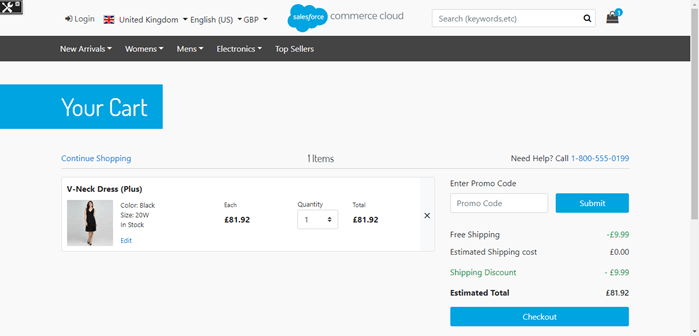
When the shipping promotion is applied to the Cart page, the ESW cartridge detects the free shipping promotion and sends the Free POST shipping method to the ESW Checkout through the Checkout API. The free shipping promotion is displayed