
ABTasty Integration
Run A/A, A/B and other tests on the storefront
AB Tasty is a tool used to run A/A, A/B, and other types of tests on the storefront. It offers several advantages over the default A/B testing provided by Salesforce Commerce Cloud (SFCC).
Advantages
- Comprehensive and Flexible: AB Tasty offers a more robust and flexible platform for running experiments and personalization
- Extensive Test Options: It supports a wide variety of test types, including multivariate and multipage tests, enabling more complex and in-depth experimentation.
- User-Friendly Interface: With an intuitive interface and advanced targeting capabilities, AB Tasty makes it easy to create and manage campaigns based on user behavior, demographics, and other key criteria.
- In-Depth Analytics: AB Tasty provides powerful analytics and reporting tools that deliver actionable insights into user behavior, empowering retailers to make data-driven decisions and continuously optimize the site experience.
- Centralized Reporting: While SFCC’s native A/B testing reports are limited to the SFCC instance, AB Tasty allows plugin developers to access centralized test data across environments.
Retailers can define and manage A/B tests and personalization campaigns directly within the AB Tasty platform. Once configured, tests and campaigns are seamlessly applied to the SFCC storefront, enabling:
- Dynamic content adjustments
- User experience optimizations
SFCC Configuration
The custom site preference ESW AB Tasty Script Path in the ESW Retailer Display Configuration is used to define the URL path for the AB Tasty script. The cartridge injects the below script in the header so that AB tasty script is enabled if configured.
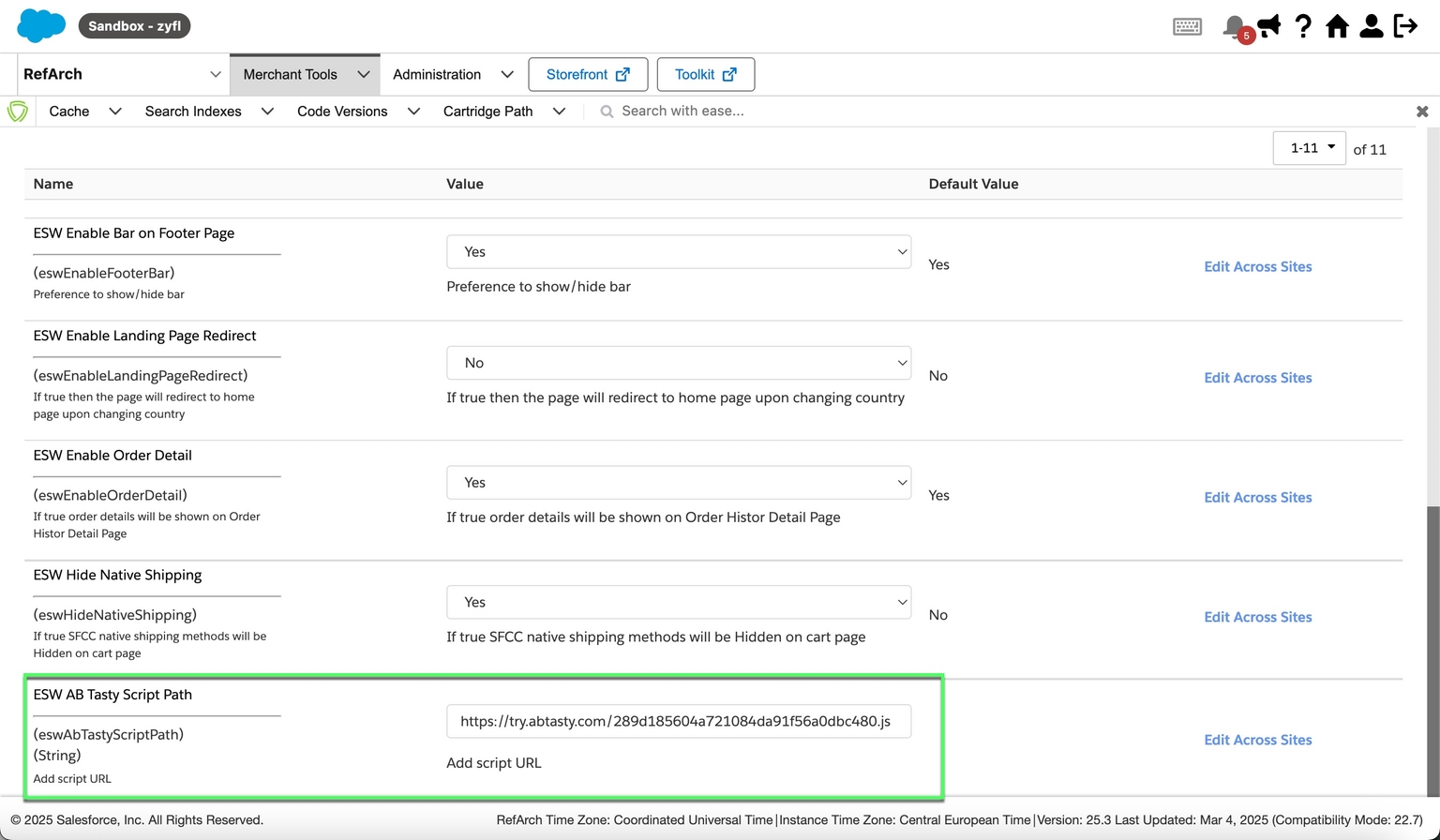
URL Script
Testing
AB Tasty Configuration
Test A – Default (Control Group)
Display Disabled Checkout Button incase restricted products are in cart (Default)
Test B – Variant
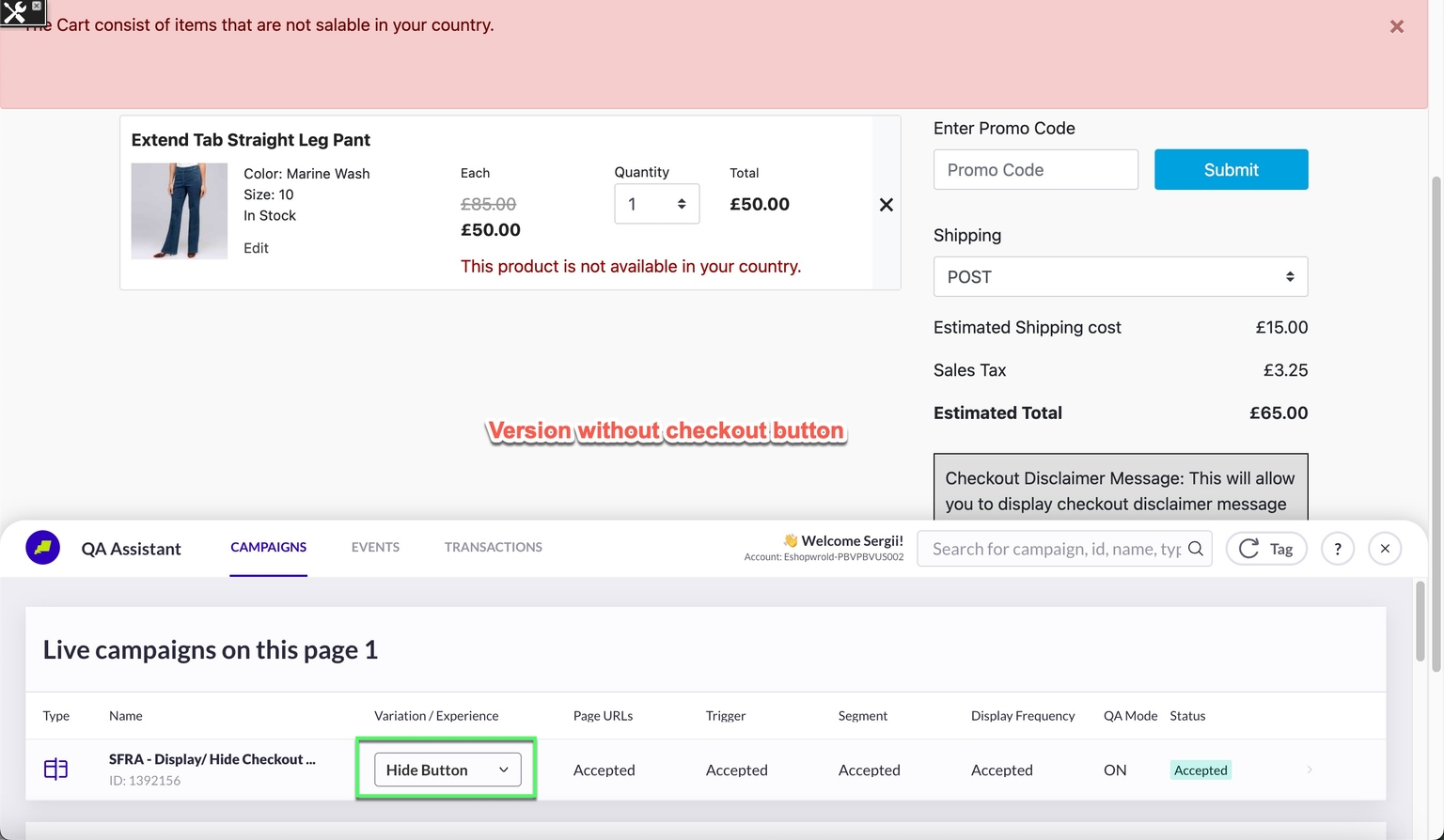
Hide Checkout Button incase restricted products are in cart.
Below is the configuration steps for one of the tests:
Create Tests
Select the environment in the AB tasty platform and create the tests
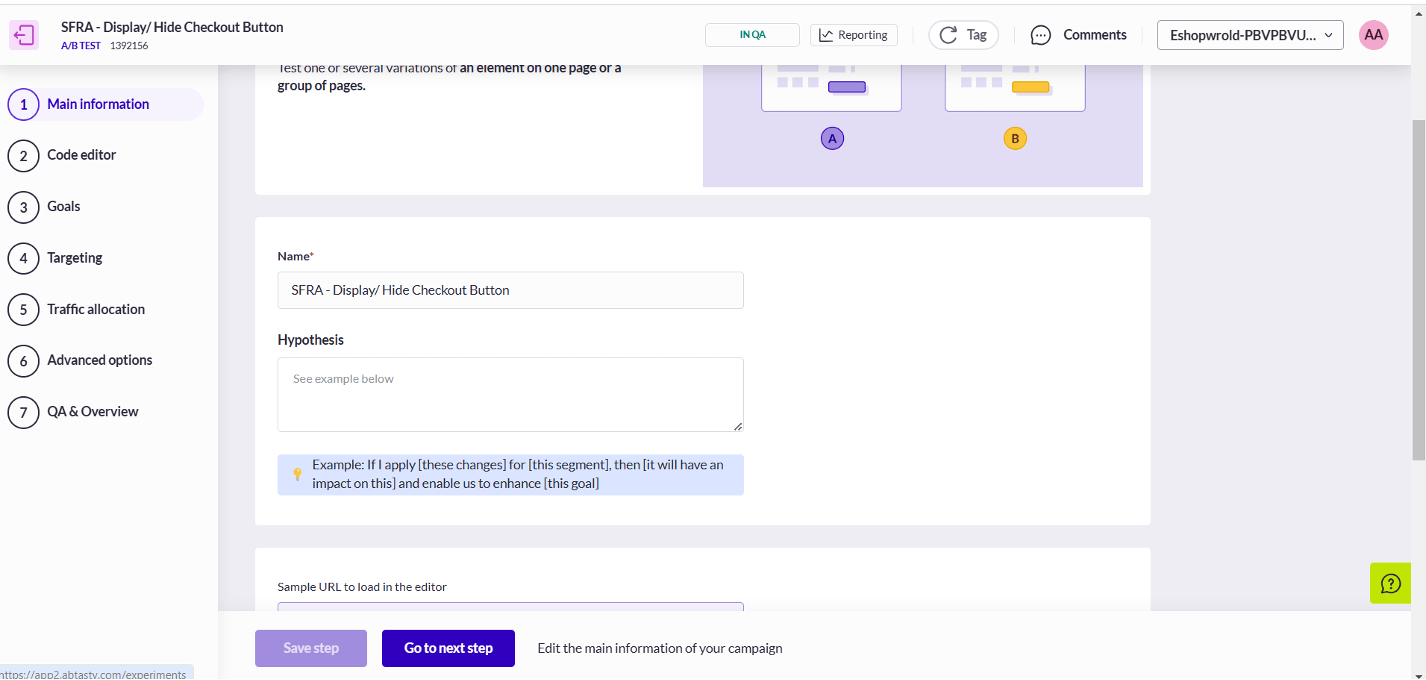
Create Tests
Configure environment
Ensure the URL for the correct environment is configured
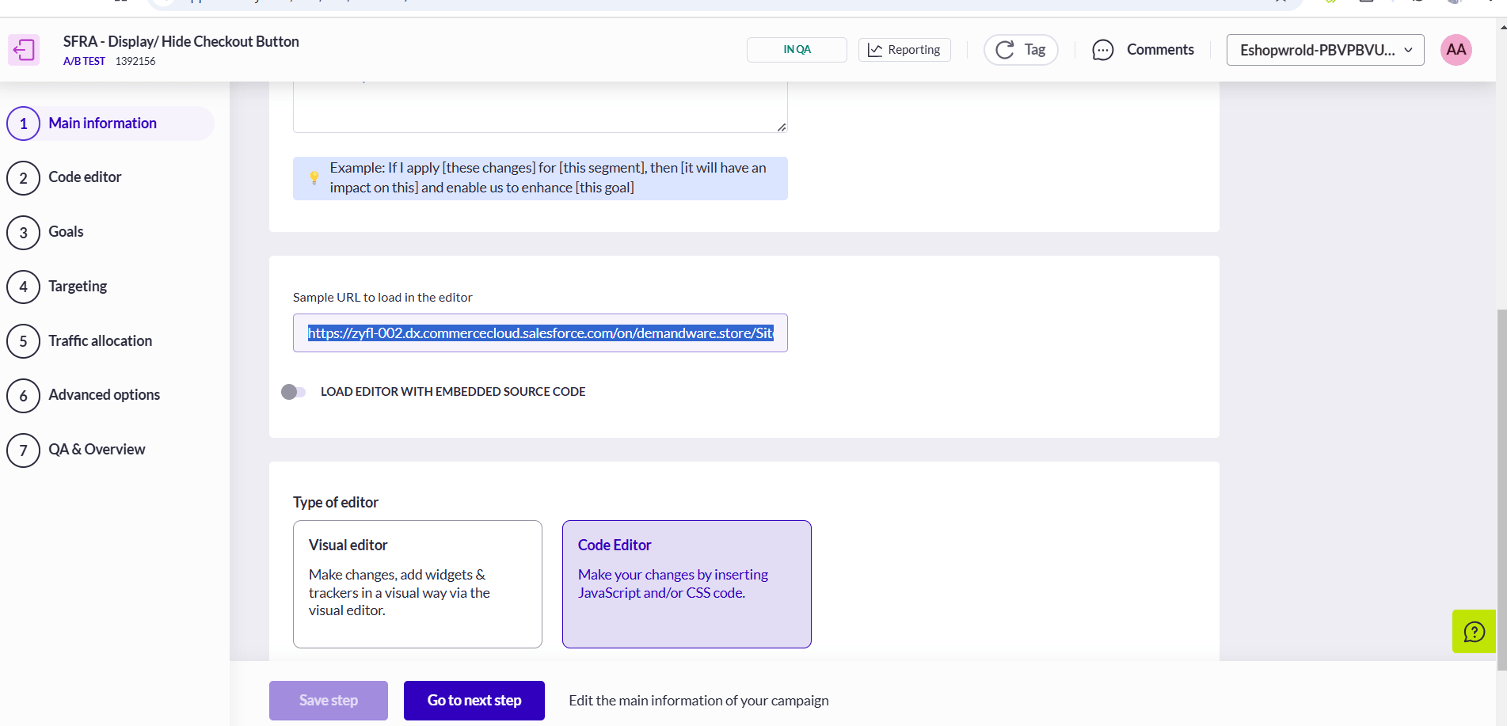
Configure environment
Add Code Changes
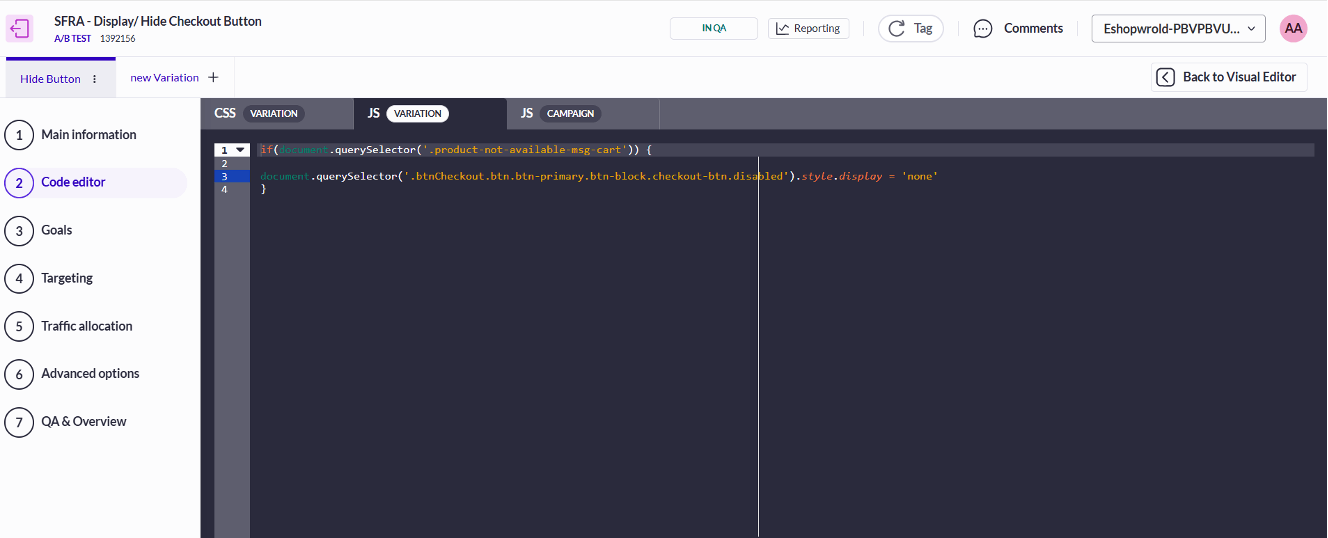
Add code changes for the AB test. In this case, the code logic to hide button was added incase product restriction message is present on the storefront cart page.
Add Code Changes
Add Goals and Targeting URL
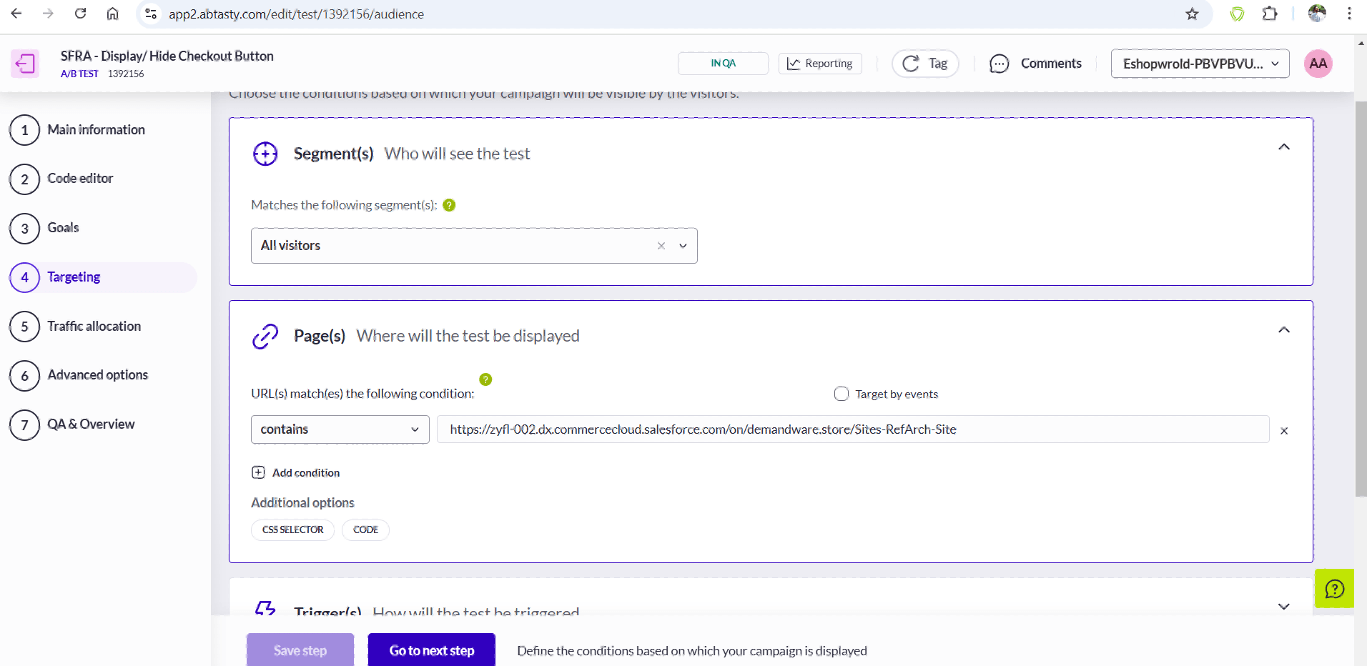
- Add Goals and then add Targeting URL.
- Ensure the Pages where the test will be displayed is a generic site URL to ensure that the test loads.
Add Goals and Target URL
Allocate Traffic
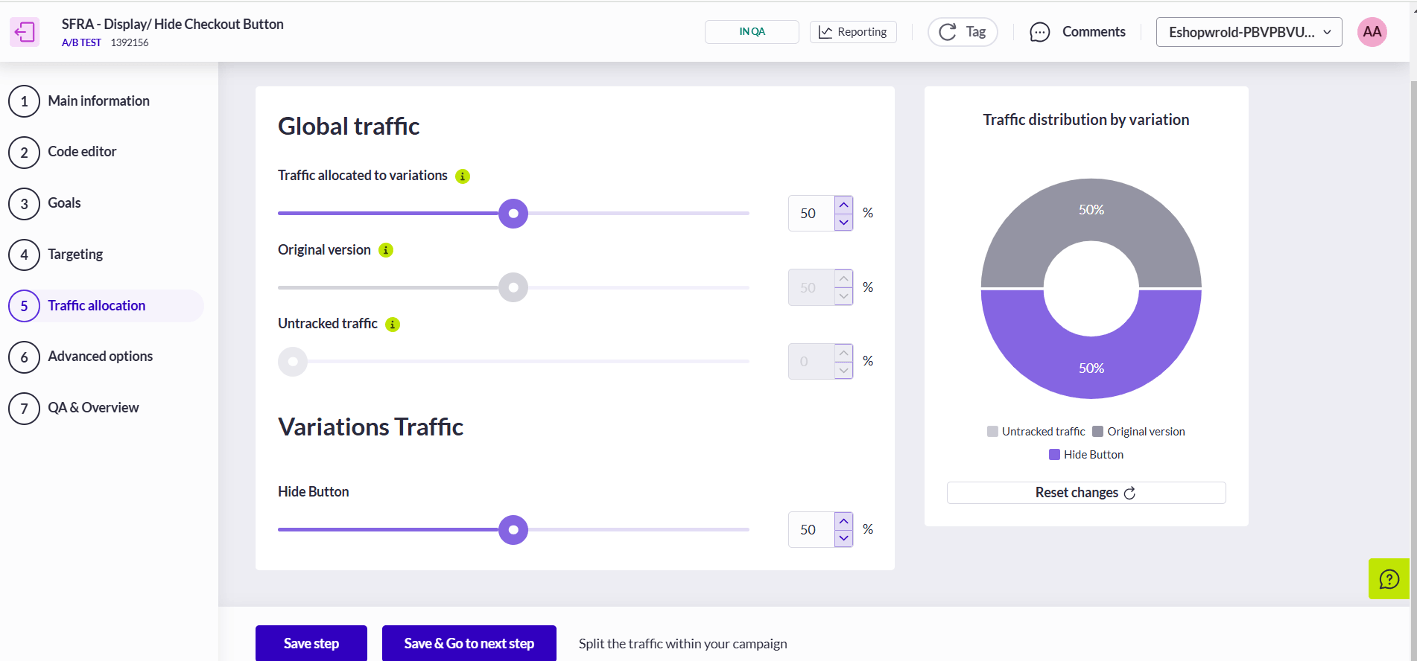
In this example, the 50% of the traffic is allocated to Hide the checkout button and 50% is allocated to disable the button which is the original version.
Allocate Traffic
Publish
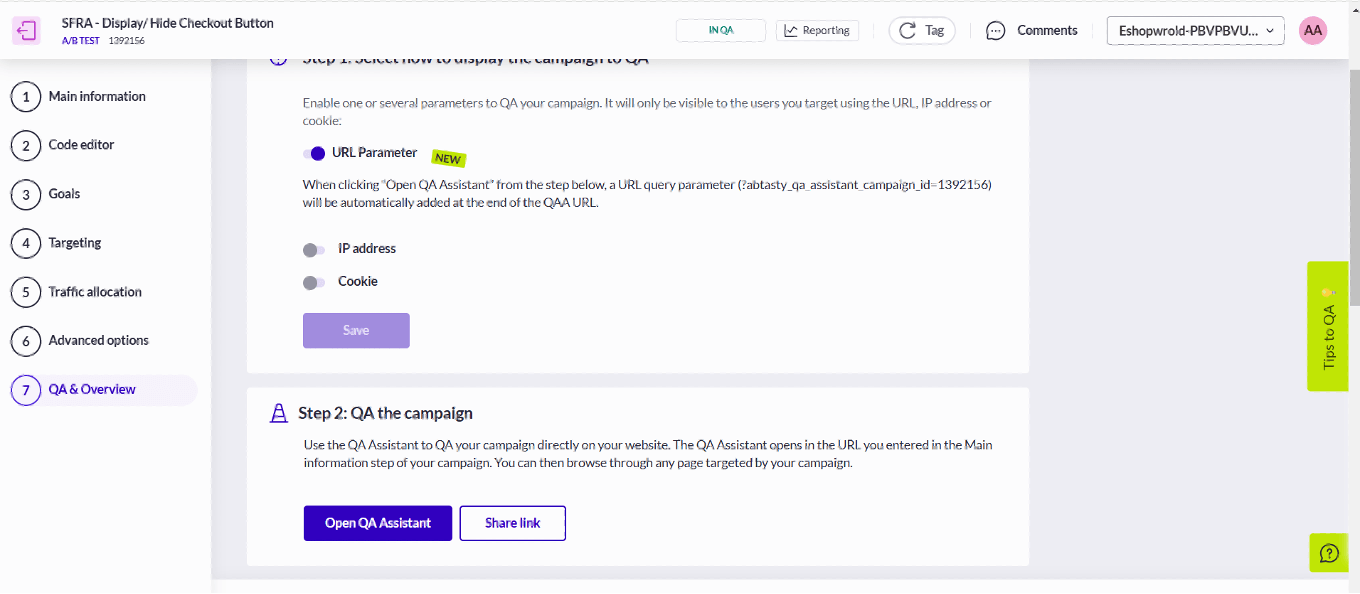
Compile and click on Open QA Assistant to publish live
Publish
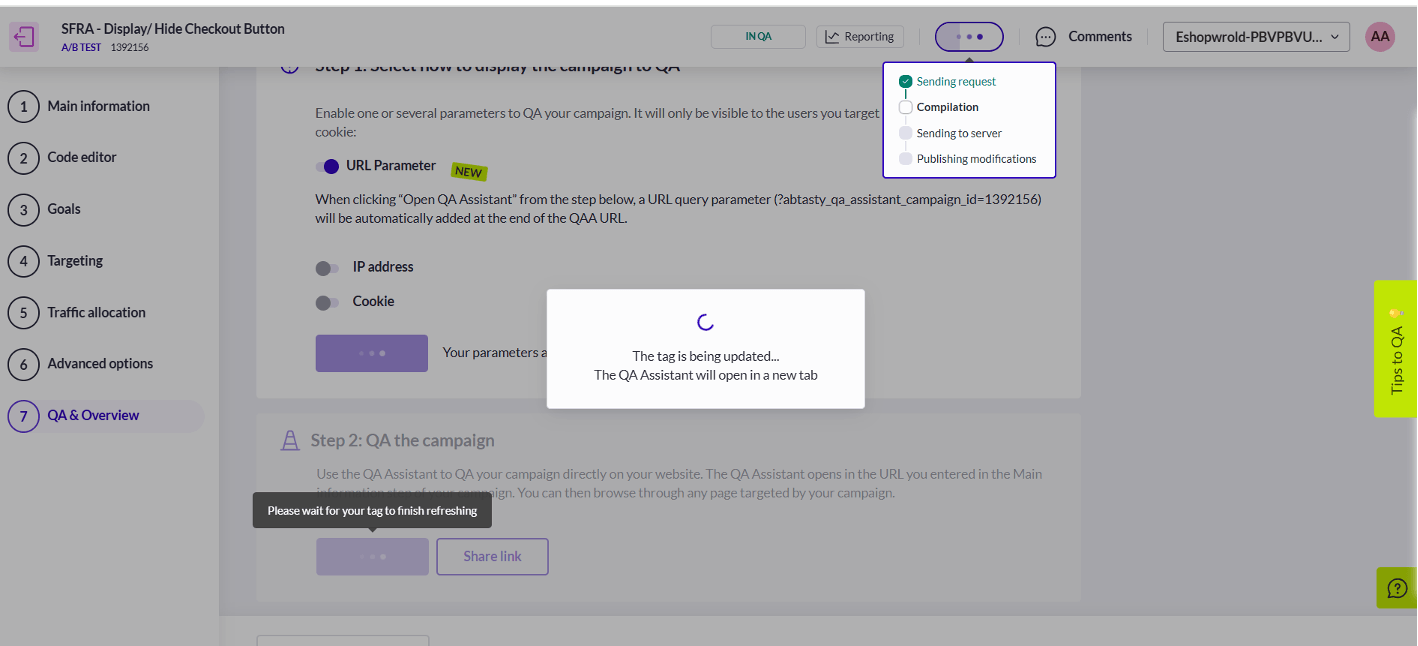
ABTasty Configuration
Using QA Assistant to check variation of campaign
Once configuration and test setup are complete, and the AB Tasty script is successfully loaded, the storefront will open with the AB Tasty QA Assistant activated.
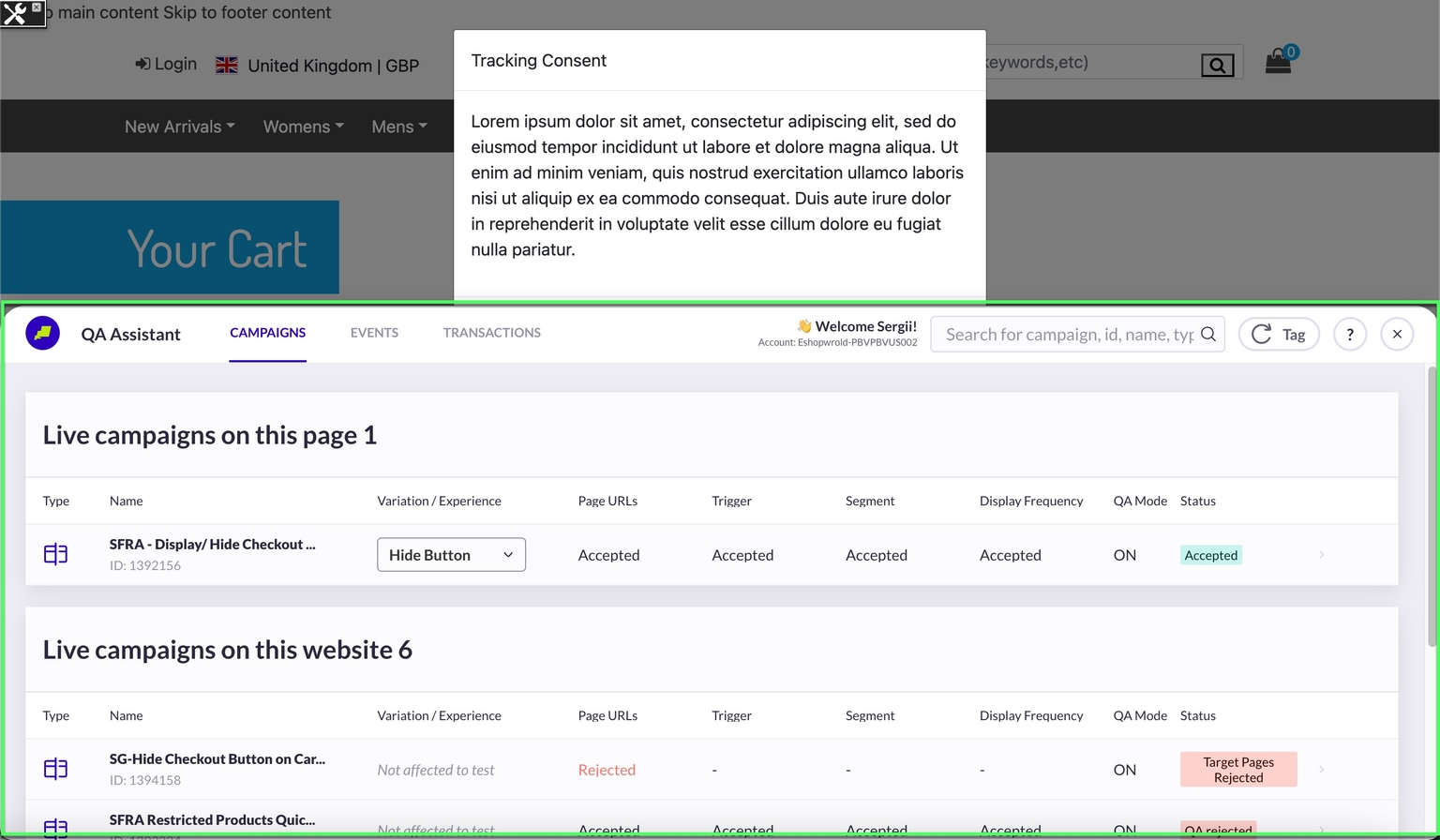
ABTasty Configuration
To test this configuration, add the product to the basket, then navigate to Business Manager > Merchant Tools > Products and set the ESW List of Countries Where Product Is Restricted to match the country selected on the storefront.
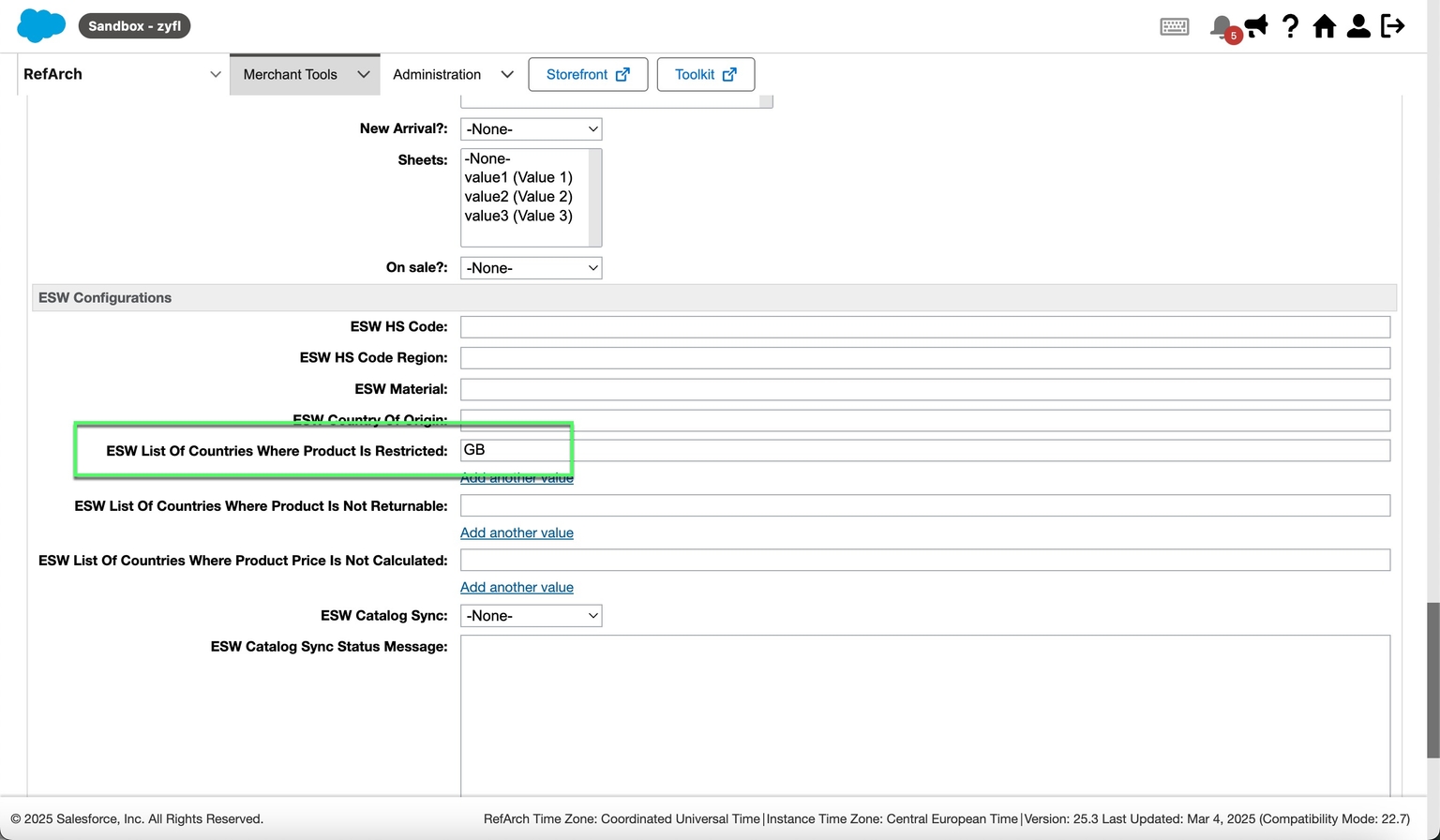
ABTasty Configuration
Once completed, you can view both test versions on the storefront by using the Variation/Experience dropdown in the QA Assistant.
Results
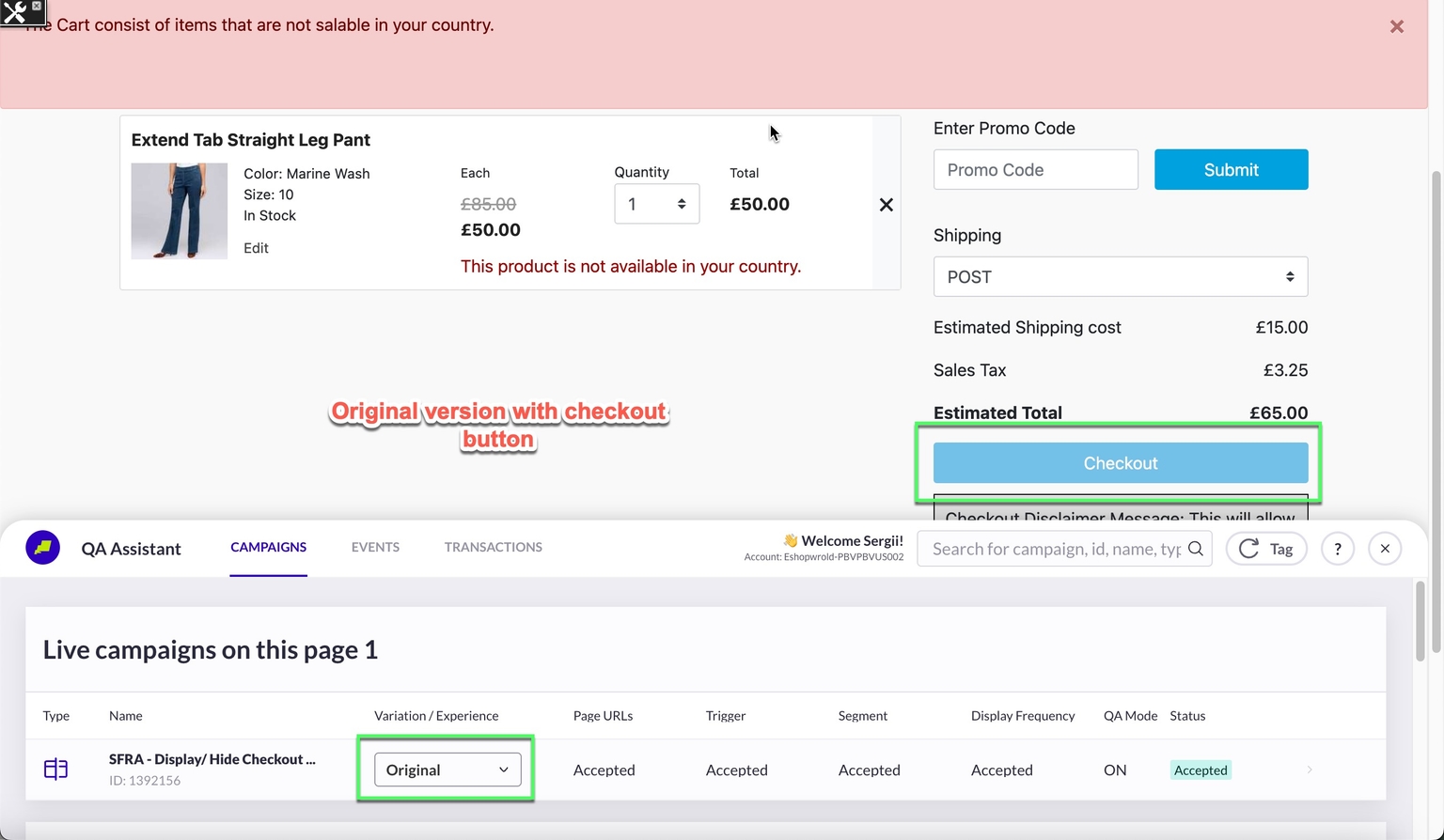
ABTasty Configuration