

Embedded Checkout
Enable shoppers to to complete their purchases directly within the retailer’s storefront
Overview
The Embedded Checkout feature enables shoppers to complete their purchases directly within the retailer’s storefront through an iFrame provided by ESW.
This approach improves the shopping experience by:
- Keeping the entire checkout process on the retailer’s site
- Enhancing shopper trust and confidence
- Reducing the need for redirects to external checkout pages
Impacted Architectures
- SFRA (Salesforce Reference Architecture)
- SG (SiteGenesis)
- PWA (Progressive Web App)
Order Flow with Embedded Checkout
When Embedded Checkout (EC) is enabled:
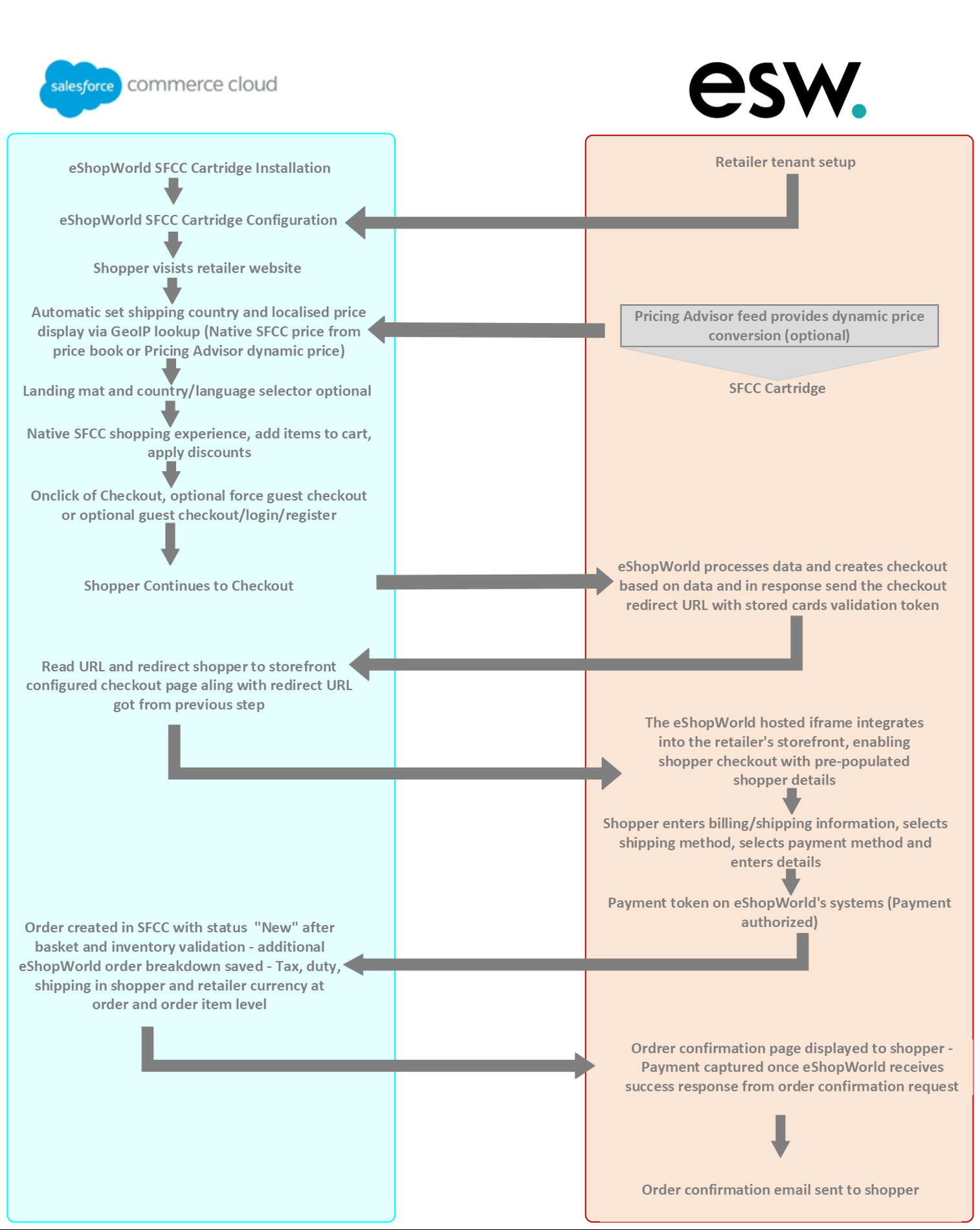
- An order is only created in SFCC once it has been confirmed by ESW.
- This confirmation is sent via an Order Confirmation Webhook from ESW to SFCC.
When Embedded Checkout is not enabled:
- The order is placed in SFCC immediately after the shopper clicks the Checkout button on the storefront.
Enable iFrame on ESP with Light Touch Integration (LTI)
To activate the Embedded Checkout iFrame, you need to configure it via Light Touch Integration (LTI).
- LTI provides the JavaScript snippet required to:
- Load the iFrame seamlessly within the retailer’s storefront.
- Handle all shopper actions performed inside the iFrame, including:
- Navigating back to the cart
- Placing an order.
- Managing other checkout interactions
Embedded Checkout Script via ESP
Follow these steps to configure the Embedded Checkout iFrame using Light Touch Integration (LTI)
Access Storefront Integration Settings
- In the ESP Panel.
- Navigate to: Settings → Storefront Integration
Create a New Slot
- Click the
+ New Slotbutton. - In the New Slot popup:
- Enter a Slot Name.
- Select the Platform Type (
WeborCustom). - Enable the iFrame Integration module.
- Click Continue.
Add the iFrame Module
- In the Modules section, click
Add iFrame. - Select
Checkoutas the iFrame Type. - Fill in the required fields:
| Field | Value / Description |
|---|---|
| Target URL String | eshopworld/checkout (default; can be changed via Magento URL Rewrite) |
| iFrame CSS Selector | .esw-checkout-iframe (container class where the iFrame will be created) |
| Fallback Cookie Name | (Optional but recommended) Set a custom name, e.g., EswCookie to avoid conflicts. |
Save the Slot
- Click Save to finalize the slot configuration.
Copy the Integration Snippet URL
- After saving, copy the Integration Snippet URL provided.
- Use this snippet to load and enable the Embedded Checkout iFrame in your storefront.
This setup allows the ESW checkout to be embedded within your storefront using a secure iFrame for seamless user experience.
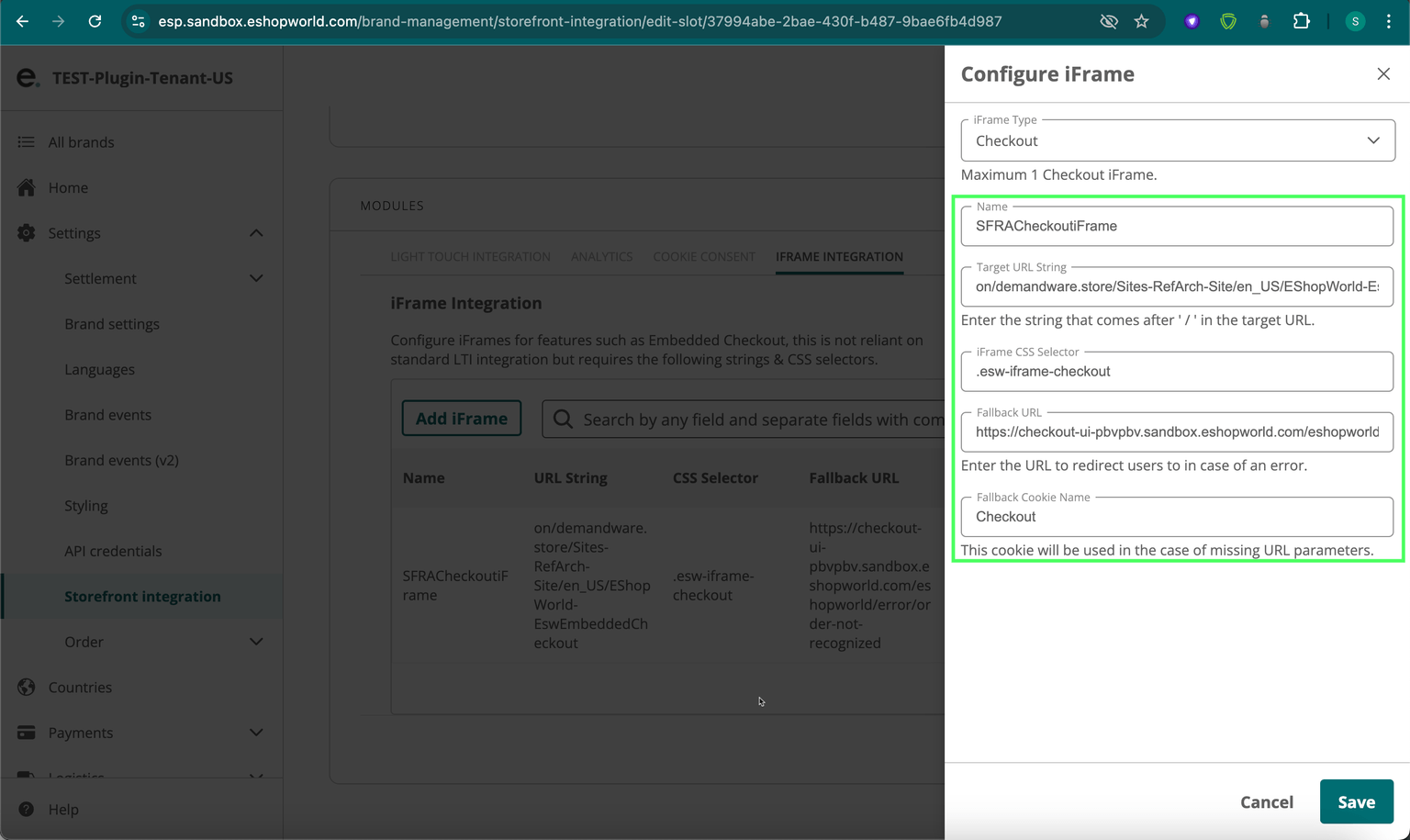
Example of the filled in fields for SFRA architecture:
- Name:
SFRACheckoutiFrame - Target URL String:
on/demandware.store/Sites-RefArch-Site/en_US/EShopWorld-EswEmbeddedCheckout - iFrame CSS Selector:
.esw-iframe-checkout - Fallback Cookie Name:
Checkout
Enable Embedded Checkout Feature in Business Manager
To enable the Embedded Checkout (EC) feature in Salesforce Commerce Cloud (SFCC), follow these steps:
Configure ESW SPARK Integration
- Navigate to Merchant Tools → Site Preferences → Custom Site Preferences
- Open ESW SPARK Integration Configuration.
- Paste the Integration Snippet URL (copied from ESP) into ESW SPARK Script Path
- Enter the ESW SPARK Cookie Name (used to store the checkout URL).
- Enter the ESW SFCC OCAPI Client ID.
- Click Save to apply the changes.
Update ESW Checkout Configuration
- Go to Merchant Tools → Site Preferences → Custom Site Preference Groups
- Open ESW Checkout Configuration.
- Update the ESW Metadata Items with the following values:
Update Cartridge Path
- Set the cartridge path based on your storefront architecture:
For PWA:
For SFRA:
For SiteGenesis (SG):
Ensure that the cartridge path is correctly set for your storefront type to enable proper ESW SPARK integration functionality.
::
Test
Follow these steps to test
Enable ESW Embedded Checkout
- Ensure that ESW Embedded Checkout is enabled in the site preferences and storefront configuration.
Open the Storefront
- Navigate to your SFCC storefront in a browser.
Add a Product to the Basket
- Browse the storefront.
- Select any product and click Add to Basket.
Go to the Basket
- Open the basket or mini-cart.
- Review the added product details.
Proceed to Checkout
- Click the Checkout button.
- Verify that the Embedded ESW Checkout loads as expected.
This confirms that the ESW Embedded Checkout integration is functioning properly on your storefront.