

Shipping Methods, Rates, EDD for New Markets
Configure Shipping Methods, Rates, EDD for New Markets
Fulfillment Location
A location refers to any physical place or app where you:
- Sell products
- Ship or fulfill orders
- Stock inventory
Manage Multiple Locations
You can configure multiple locations in your Shopify store to:
- Track inventory levels across different sites
- Fulfill orders from the most optimal location
- Manage stock efficiently across your business
Examples of Locations
Any place where you store or manage inventory including:
Retail Stores
Warehouses
Pop-up shops
Dropshippers
Set Up Locations
In Shopify, you can add, deactivate, reactivate, or delete locations as needed.
Manage Locations
- Navigate to Settings → Locations → All locations
- From this page, you can:
- View and manage all active and inactive locations
- Filter, sort, and search for specific locations
Add a location
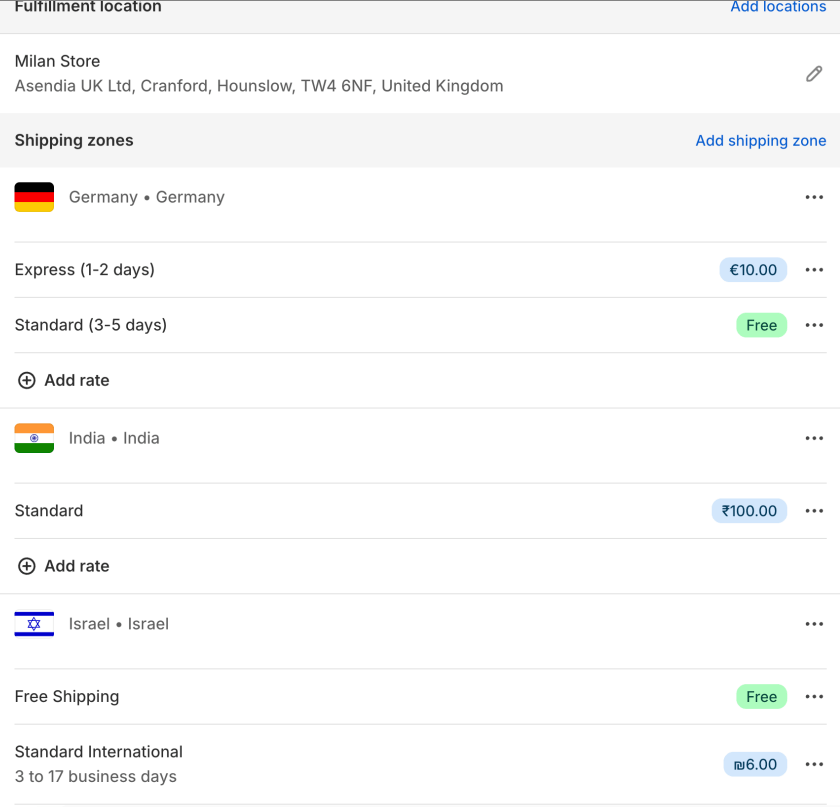
You can add a new location in Shopify to manage inventory, fulfillment, and shipping more effectively.
Behavior of New Locations
- Inventory is automatically made available for online purchases at each newly created location.
- Once created, you can activate delivery methods for the location.
- The new location is added to the bottom of your fulfillment priority list.
By default, new products are stocked at all locations. You can adjust inventory levels from Products > Inventory, selecting a location, and editing variants. For large updates, use the bulk editor or CSV imports. You can't remove all stock from locations that have pending orders or transfers.
Steps
Follow these steps to add a location
Access Locations
- From your Shopify Admin, go to Settings → Locations
Add a New Location
- In the All Locations section, click Add Location.
Enter Location Details
- In the Location Details section:
- Name:
- Click Add, enter a location name, and click Done.
- Address:
- Click Add, enter the location address, and click Save.
Inventory Availability (Optional)
- To disable online fulfillment from this location:
- Deactivate Inventory at this location is available to fulfill online orders.
- (This is enabled by default for each new location.)
Save the Location
- Click Save to add the new location.
Locations help you manage inventory and order fulfillment across multiple warehouses, stores, or physical locations.
Shipping rates
Flat shipping rates let you charge a fixed amount for shipping during checkout.
Usage
- Can be applied to any order within a defined shipping zone.
- Can also be configured based on:
- Order weight
- Order price range
Add Shipping Rate
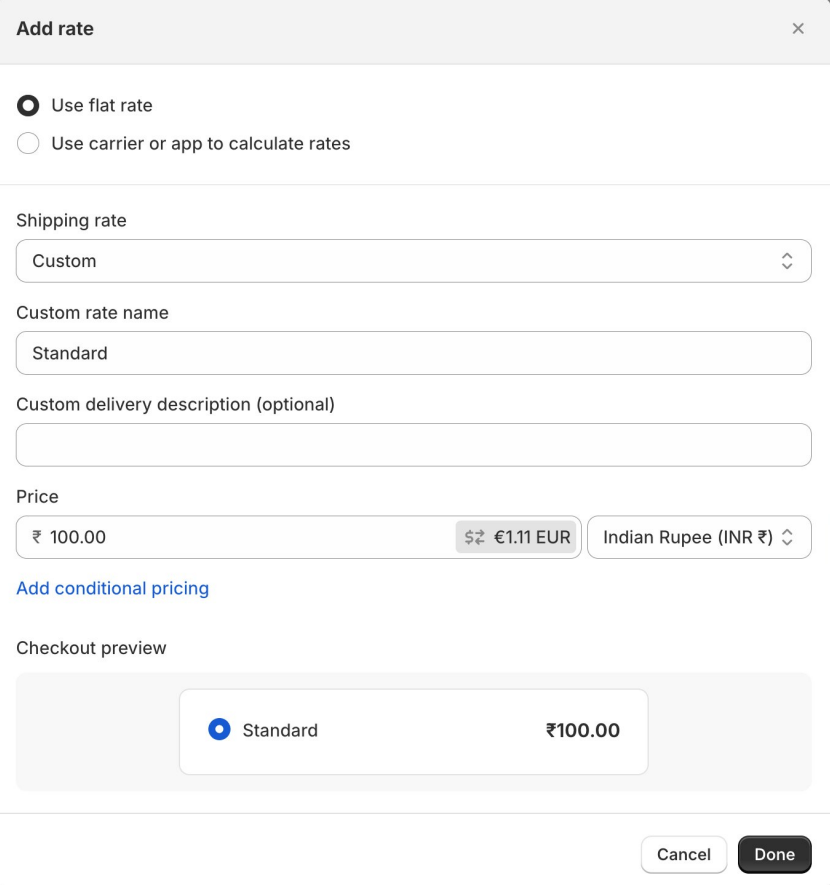
Follow these steps to add a shipping rate
Access Shipping Settings
- From your Shopify Admin, go to Settings → Shipping and Delivery
Select Shipping Profile
- In the Shipping section:
- Click the Shipping Profile where you want to add shipping rates.
Add Shipping Rate
- Next to the zone you want to add a rate to, click Add Rate.
- Choose:
- A transit time, or
- Custom flat rate to name the rate manually.
(Optional) Add Delivery Description
- If Custom Flat Rate is selected:
- Enter a delivery description (e.g., Tracked Shipping or Ships Next Day).
- For optimal display, use 25 characters or fewer.
Enter Shipping Rate
- Specify the shipping rate amount.
(Optional) Add Conditions
- Add weight-based or price-based conditions for the shipping rate if needed.
Review Checkout Preview
- Check the checkout preview to ensure the shipping rate displays correctly.
Save Shipping Rate
- Click Done, then Save to apply the new shipping rate.
You can configure multiple shipping rates with different price or weight conditions to offer flexible shipping options for customers.