

Setup Automatic Country and Language Redirection
Switch language to match the visitor’s browser when translations are available
When automatic redirection is enabled, shoppers are automatically redirected to the storefront that best matches their location preferences (e.g., country, language, or currency).
This ensures:
- A localized shopping experience tailored to the shopper’s region.
- Automatic display of the appropriate storefront without requiring manual selection.
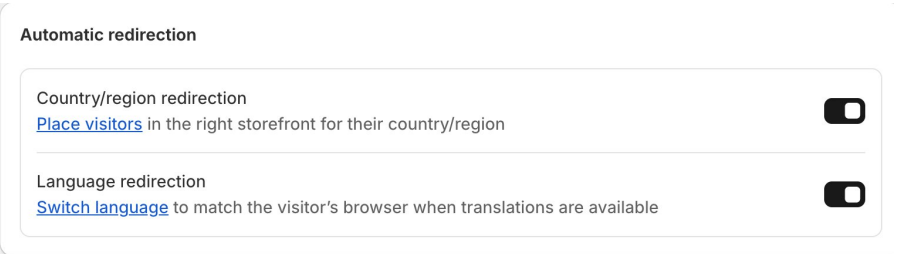
Setup Automatic Country and Language Redirection
Activate automatic redirection
Follow these steps to activate automatic redirection
Access Online Store Preferences
- From your Shopify Admin, go to Online Store → Preferences
Enable Automatic Redirection
- In the Automatic redirection section:
- Activate the Country/Region setting.
Save Changes
- Click Save to apply automatic redirection.
Automatic and Manual Region Switching
- After enabling automatic redirection:
- Region-specific content is automatically displayed to customers.
- To allow manual switching between countries and languages:
- Activate selectors in your online store theme.
- If your theme does not include these selectors:
- Add them using a third-party app from the Shopify App Store.
Automatic redirection helps ensure customers see the correct localized content based on their country or region.
Markets Using Dedicated Domains
When a market is configured with its own domain, subdomain, or subfolder, the country/region redirection feature automatically detects the customer’s geolocation and redirects them to the corresponding market URL.
- US Market:
example.com - Canada Market:
example.ca
If a Canadian customer visits example.com, they are automatically redirected to example.ca.
For markets using dedicated domains, the localized content is automatically indexed by search engines, improving discoverability and SEO performance for each market-specific storefront.
Markets Using Shared Domains
When a market shares the same domain as another market, the country/region redirection feature automatically detects the customer’s geolocation and adjusts the storefront content dynamically. This includes updates to currency, language, and other localized elements without changing the domain.
- Primary Market: United States –
USD–example.com - Secondary Market: Canada –
CAD– using the same domain (example.com)
When a Canadian customer visits example.com, product prices and other content are automatically displayed in CAD.
For markets using shared domains, localized content is not indexed separately by search engines, as all markets operate under the same domain.
Country or Region Redirection in the European Union (EU)
To comply with EU legislation, customers from the European Union who access a localized storefront with a country-code top-level domain (ccTLD) are not automatically redirected. This ensures shoppers remain on the store they intentionally visited.
Market uses a country-specific domain
- A French customer visiting
example.dewill not be automatically redirected toexample.fr.
Market uses a non-country-specific domain
- EU customers can be automatically redirected based on their location.
Optional Enhancement
To improve the user experience, you can install a third-party app from the Shopify App Store.
- These apps display country/region recommendations, allowing EU shoppers to manually select their preferred store for the correct language and location.
EU Country Code Top-Level Domains (ccTLDs)
Use the list below to identify the specific ccTLDs for EU countries:
| Country | Flag | ccTLD |
|---|---|---|
| Austria | .at | |
| Belgium | .be | |
| Bulgaria | .bg | |
| Croatia | .hr | |
| Cyprus | .cy | |
| Czech Republic | .cz | |
| Denmark | .dk | |
| Estonia | .ee | |
| Finland | .fi | |
| France | .fr | |
| Germany | .de | |
| Greece | .gr | |
| Hungary | .hu | |
| Ireland | .ie | |
| Italy | .it | |
| Latvia | .lv | |
| Lithuania | .lt | |
| Luxembourg | .lu | |
| Malta | .mt | |
| Netherlands | .nl | |
| Poland | .pl | |
| Portugal | .pt | |
| Romania | .ro | |
| Slovakia | .sk | |
| Slovenia | .si | |
| Spain | .es | |
| Sweden | .se | |
| European Union | .eu |
Language Redirection
Language redirection automatically detects the customer’s browser language and switches the storefront to the matching language, if it’s available.
Requirements
For language redirection to work:
- The language must be added to your store.
- It must be assigned to the relevant markets.
- Translations must be added for store content.
- The language must be published.
Example
- Domain:
example.ca - Default Language: English
- Shopper’s Browser Language: French
When language redirection is enabled:
- The shopper is automatically redirected to
example.ca/fr, - The storefront is displayed in French for a localized experience.
Follow these these steps for automatic language redirection
Access Online Store Preferences
- From your Shopify Admin, navigate to:
Online Store → Preferences
Enable Language Redirection
- In the Automatic redirection section:
- Activate the Language setting.
Save Changes
- Click Save to apply automatic language redirection.
Enabling this setting ensures that customers are automatically redirected to the correct language version of your store based on their browser preferences or location.