

Languages & Domains
Add languages and domains for each Market in Shopify Admin
Managing Languages
You can manage and configure multiple storefront languages directly from your Shopify Admin:
- Languages Section: Add, edit, and maintain all languages available in your store.
- Markets Section: Assign specific languages to each market to deliver a localized shopping experience for different regions.
Considerations for Managing Languages
When managing languages and translations for your Shopify store and markets, keep the following in mind:
Ensure your store is eligible and meets the requirements for selling in multiple languages.
Add a Language to Your Online Store
Follow these steps to add a new language to your Shopify store:
Navigate to Language Settings
- From your Shopify Admin, go to:
Settings → Languages
Add a New Language
- Click Add Language.
- In the dialog, select the desired language from the drop-down menu.
Select Markets
- If you have no international domains or only one market:
- Click Add.
- If you have multiple markets and international domains set up:
- Click Next.
- Toggle the markets you want to apply the language to.
- Click Done.
Add Translations
- Option 1: Use the Translate & Adapt app to import your translated content.
- Option 2: Install a translation app from the Shopify App Store and follow its instructions to translate and publish new languages.
Adding multiple languages allows your store to reach international customers and improve their shopping experience by displaying localized content.
Publish the Language to Your Online Store
Access Language Settings
- From your Shopify Admin, navigate to Settings → Languages
Select Language to Publish
- Under Unpublished Languages, click the … (More Options) menu next to the language you want to publish.
- Select Publish.
Save Changes
- Click Save to make the selected language available to customers in your store.
Once published, customers can view and shop in the newly enabled language on your storefront.
Manage Languages for Markets
In Shopify, you can add, manage, and set default languages for each market through the Markets section of your admin panel.
Prerequisites
- You must configure international domains using subfolders, domains, or subdomains to manage languages per market.
- Without international domains:
- Language settings are shared across all active markets.
- You cannot configure language settings for individual markets.
Add a Language to a Market
Before you can assign a language to a specific market, you must add the language.
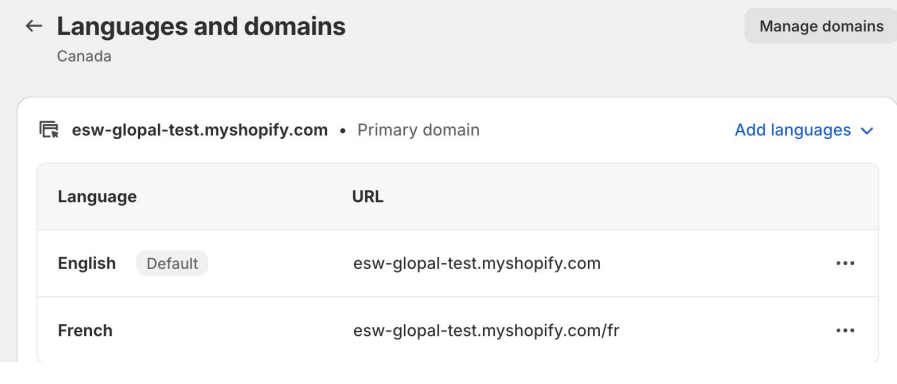
Add Languages & Domains
Follow these steps to add a language and a domain to a market
Access Markets
- From your Shopify Admin, go to Settings → Markets
Select Market
- Click the market that you want to manage languages for.
Open Languages and Domains
- Click Languages and Domains.
Add Languages
- Click Add Languages.
- Under the Not added to this market section:
- Click the language you want to add.
Adding a language to a specific market ensures localized shopping experiences for customers in that market.